


Troubleshooting Guide: How to Fix SSL Protocol Error

Updated: Aug 5
Seeing an SSL error instead of the website you want can be frustrating. One moment you're trying to open a page, and the next your browser displays a warning that blocks access. If you're trying to Fix SSL protocol error, the good news is that the problem is often easier to solve than it looks.
In many cases, the error is caused by incorrect browser settings, an outdated SSL/TLS configuration, cached data, or even a computer clock that isn't showing the correct time. This guide explains the most common causes and walks you through simple solutions that both website visitors and website owners can follow.

What Is an SSL Protocol Error?
An SSL protocol error appears when your browser cannot establish a secure connection with a website. SSL (Secure Sockets Layer) and its modern replacement, TLS (Transport Layer Security), encrypt information exchanged between your browser and a website.
Think of SSL as a sealed envelope. If the envelope is damaged or the address is incorrect, the message cannot be delivered safely. Similarly, if something interrupts the secure connection, your browser displays an SSL-related error instead of loading the page.
Some browsers may display messages like:
ERR_SSL_PROTOCOL_ERROR
SSL Connection Error
Secure Connection Failed
SSL Handshake Failed
Although the wording changes between browsers, the underlying issue is usually related to establishing a secure HTTPS connection.
Common Reasons You Need to Fix SSL Protocol Error
Several different issues can trigger this error.

Incorrect Date and Time
Your browser checks whether an SSL certificate is currently valid. If your computer's date or time is incorrect, even a valid certificate may appear expired or not yet active.
This is one of the quickest problems to fix.
Outdated Browser
Older browser versions may not support modern TLS security standards. Updating your browser ensures compatibility with newer SSL certificates.
Browser Cache and Cookies
Cached files help websites load faster, but corrupted cache or outdated cookies can interfere with secure connections.
Clearing browser data often resolves the issue.
Antivirus or Firewall Interference
Some antivirus programs inspect encrypted traffic. If this inspection is misconfigured, it can accidentally block SSL connections.
Invalid SSL Certificate
Website owners must install a valid SSL certificate correctly. If the certificate expires or is installed improperly, visitors will see security warnings.
Unsupported SSL/TLS Version
Modern browsers disable outdated security protocols because they are no longer considered safe. If a server still relies on old versions, secure communication fails.
How to Fix SSL Protocol Error on Your Computer
If you're visiting a website and encounter this problem, try these solutions one by one.
1. Check Your System Clock
Verify that:
Date is correct
Time is correct
Time zone matches your location
Then refresh the website.
2. Update Your Browser
Running an outdated browser can prevent secure connections.
Install the latest version of Chrome, Firefox, Edge, or Safari before testing again.
3. Clear Browser Cache
Cached website files sometimes conflict with updated SSL certificates.
Clear:
Cached images
Cookies
Browsing history (optional)
Restart the browser afterward.
4. Disable Browser Extensions
Privacy extensions, VPN plugins, or security add-ons may interfere with encrypted traffic.
Temporarily disable extensions and reload the website.
5. Test Another Browser
If the website works in another browser, the issue likely exists within your original browser settings rather than the website itself.
Server-Side Solutions for Website Owners
Visitors are not always responsible for SSL errors. Sometimes the server configuration needs attention.
Renew Expired SSL Certificates
SSL certificates have expiration dates.
Website administrators should renew certificates before they expire to prevent browser warnings.
Install the Certificate Correctly
An incorrectly installed certificate may:
Break the certificate chain
Trigger browser warnings
Prevent HTTPS connections
Double-check the installation after renewal.
Enable Modern TLS Versions
Current browsers expect modern TLS versions.
Older protocols are disabled because they contain known security weaknesses.
Verify HTTPS Configuration
Ensure your website:
Redirects HTTP to HTTPS correctly
Loads all images securely
Avoids mixed-content warnings
Uses the correct certificate for every domain
If you're planning new projects or migrating websites, choosing reliable secure web hosting solutions can help maintain proper SSL support and simplify certificate management over time.
Real-World Example
Sarah owns a small online bakery.
One morning, customers reported an SSL warning before entering her website. After checking her hosting dashboard, she discovered that her SSL certificate had expired the previous day.
Once the certificate was renewed, visitors could access the website normally again.
Browser Problem vs Server Problem
Situation | Likely Cause | Who Fixes It? |
Wrong computer time | Local device settings | User |
Outdated browser | Browser compatibility | User |
Corrupted cache | Browser data | User |
Expired SSL certificate | Website configuration | Website owner |
Incorrect certificate installation | Server configuration | Website owner |
Unsupported TLS version | Server security settings | Website owner |
When Should You Contact Your Hosting Provider?
Some SSL issues require server-level access.
Consider contacting your hosting provider if:
SSL certificate installation repeatedly fails
HTTPS redirects stop working
Browser warnings appear for every visitor
Certificate renewal does not solve the issue
TLS configuration needs updating
Many providers can help verify certificate chains and server configuration.
For a more detailed walkthrough covering additional ERR_SSL_PROTOCOL_ERROR browser fixes, including browser-specific troubleshooting, this step-by-step guide provides practical examples and extra solutions.
Common Mistakes to Avoid
Many users accidentally make troubleshooting harder.
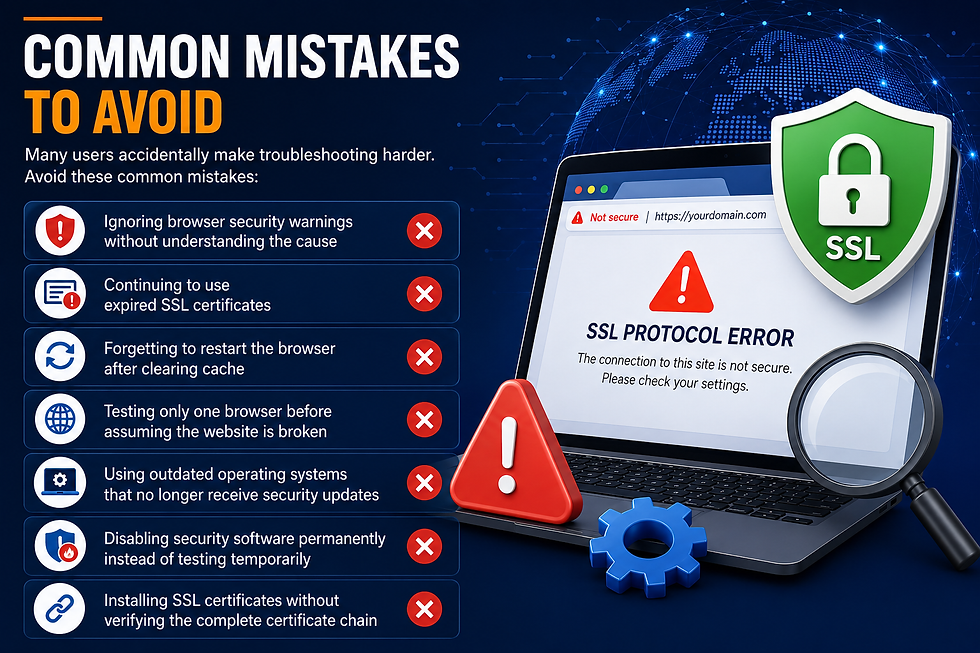
Avoid these common mistakes:
Ignoring browser security warnings without understanding the cause
Continuing to use expired SSL certificates
Forgetting to restart the browser after clearing cache
Testing only one browser before assuming the website is broken
Using outdated operating systems that no longer receive security updates
Disabling security software permanently instead of testing temporarily
Installing SSL certificates without verifying the complete certificate chain
Tips to Prevent Future SSL Errors
Prevention is usually easier than troubleshooting.
Good habits include:
Keep browsers updated.
Enable automatic operating system updates.
Monitor SSL certificate expiration dates.
Use trusted Certificate Authorities.
Test HTTPS after website updates.
Renew certificates before expiration.
Review server TLS settings regularly.
These simple maintenance steps reduce the chances of future SSL connection problems.
Frequently Asked Questions
Q. What causes an SSL protocol error?
A. It usually happens when a browser cannot establish a secure encrypted connection. Common causes include expired certificates, incorrect system time, outdated browsers, or server configuration issues.
Q. Can clearing browser cache fix SSL protocol errors?
A. Yes. Corrupted cache or outdated cookies sometimes interfere with secure connections. Clearing them is a quick troubleshooting step that often resolves browser-side issues.
Q. Is an SSL protocol error dangerous?
A. Not always. Sometimes it's simply caused by incorrect device settings. However, it can also indicate certificate problems, so it's wise to investigate before entering sensitive information.
Q. Why does the error appear only on one browser?
A. Each browser stores its own cache, cookies, and security settings. A problem affecting one browser may not affect another.
Q. Does renewing an SSL certificate immediately solve the issue?
A. Usually, yes, if the certificate was the root cause. However, browsers may still display cached information, so clearing cache or waiting for propagation may also be necessary.
Q. Can outdated TLS versions cause SSL errors?
A. Yes. Modern browsers reject older encryption protocols because they no longer meet current security standards. Updating server settings to support modern TLS versions is often required.
Conclusion
Learning how to Fix SSL protocol error becomes much easier once you identify whether the issue is on your device or the website's server. Simple checks such as correcting your system clock, updating your browser, clearing cached data, or renewing an SSL certificate solve many cases without advanced technical knowledge.
If you're managing a website and want to learn more about maintaining secure connections, reliable HTTPS support, and website security best practices, explore the resources available through secure web hosting solutions .



Comments