


Mastering Linux Permissions: How to Recursively Change Permissions with chmod

A Linux website can stop working even when every file is still in place. Incorrect permissions can prevent scripts from running, block file uploads, or stop visitors from accessing pages. In many cases, the files themselves are not missing their access settings simply need to be corrected.
The chmod change permissions recursively command makes it easy to update an entire directory, including all files and sub directories, in a single operation. This is especially useful after migrating a website, restoring a backup, or deploying a new application. However, because the command affects multiple files at once, it should always be used carefully.
This guide explains how Linux file permissions work, what common permission values such as 755, 644, 700, and 777 mean, and how to apply recursive permission changes safely.

Linux File Permissions Overview
Linux uses file permissions to determine who can read, modify, or execute files and directories. Permissions also control who can enter a directory and access the files stored inside it.
Every file and directory belongs to three user categories:
Owner – The person who owns the file or directory.
Group – Users assigned to the same group.
Others – Everyone else who can access the system.
Each category can receive one or more of the following permissions:
Permission | Symbol | Value | Purpose |
Read | r | 4 | View file contents or list directory files |
Write | w | 2 | Edit files or create and remove items inside directories |
Execute | x | 1 | Run a file or access a directory |
Execute permission is essential for scripts and directories. Without it, applications may fail to run correctly even if the files exist.
Keep in mind that permission issues are not always caused by chmod. Incorrect file ownership or group assignments can also prevent access, so it's important to review the complete permission setup.
Understanding Permission Numbers: 755, 644, 700, and 777

Linux represents permissions using three-digit octal numbers.
Each number is created by adding these values:
4 = Read
2 = Write
1 = Execute
For example:
7 = 4 + 2 + 1 (Read, Write, Execute)
6 = 4 + 2 (Read, Write)
5 = 4 + 1 (Read, Execute)
0 = No Permission
The three digits always represent permissions for:
Owner
Group
Others
For example, 755 gives the owner full access while allowing the group and others to read and execute files.
Permission 755
Permission 755 allows the owner to read, write, and execute files. The group and others can read and execute them.
This is one of the most common permission settings for website directories because it allows the server to access files while giving the owner complete control.
Permission 644
Permission 644 gives the owner permission to read and edit files. Everyone else can only read them.
It is commonly used for HTML files, CSS, JavaScript, images, and other website resources.
Permission 700
Permission 700 grants complete access to the owner while preventing all other users from accessing the directory.
It is suitable for private folders, personal scripts, backups, and sensitive data.
Permission 777
Permission 777 gives every user full read, write, and execute access.
Although it may temporarily solve permission errors, it creates serious security risks and should generally be avoided as a permanent solution.
Permission | Owner | Group | Others | Common Use |
755 | Full Access | Read & Execute | Read & Execute | Public directories |
644 | Read & Write | Read Only | Read Only | Website files |
700 | Full Access | No Access | No Access | Private directories |
600 | Read & Write | No Access | No Access | Sensitive files |
777 | Full Access | Full Access | Full Access | Generally avoided |
These are common recommendations, but the correct permissions depend on your application, server configuration, and ownership settings.
What Does Recursive chmod Mean?
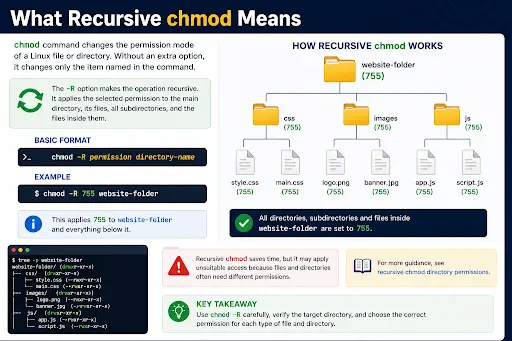
The chmod command changes the permission settings of files and directories.
Without additional options, it updates only the file or folder specified.
Adding the -R option makes the command recursive, meaning Linux applies the selected permission to:
The main directory
Every sub directory
Every file inside those directories
Basic syntax:
chmod -R permission directory-name
Example:
chmod -R 755 website-folder
This command applies permission 755 to the selected directory and everything inside it.
Although recursive chmod is convenient, files and directories often require different permission settings. Applying one permission to everything may not always be the best approach.
Important Commands and Examples
Check Existing Permissions
Before changing permissions, review the current settings using:
ls -l
Example output:
-rw-r--r-- index.html
drwxr-xr-x images
The first character identifies the item type:
- indicates a file.
d indicates a directory.
The remaining characters show permissions for the owner, group, and others.
Apply One Permission Recursively
If every item inside a directory should have the same permission, use:
chmod -R 700 private-backups
This gives the owner full access while preventing other users from accessing the directory.
After making changes, confirm that backups or applications continue working correctly.
Assign Different Permissions to Files and Directories
Most websites require different permissions for directories and files.
Directories generally use 755, while files use 644.
Directories:
find website-folder -type d -exec chmod 755 {} \;
Files:
find website-folder -type f -exec chmod 644 {} \;
This method prevents regular files from becoming executable unnecessarily and is considered a safer approach for most websites.
Practical Website Example
Imagine you've migrated a website to a Linux server. The homepage loads, but images, stylesheets, or internal pages display permission errors.
Start by checking the current permissions with:
ls -l
Once you've confirmed the correct project directory, apply 755 to directories and 644 to files.
After making the changes, test:
Website pages
Images
File uploads
Contact forms
Admin dashboard
Scheduled tasks
Verifying every important function helps ensure the permission changes haven't introduced new issues.
Best Practices and Common Mistakes
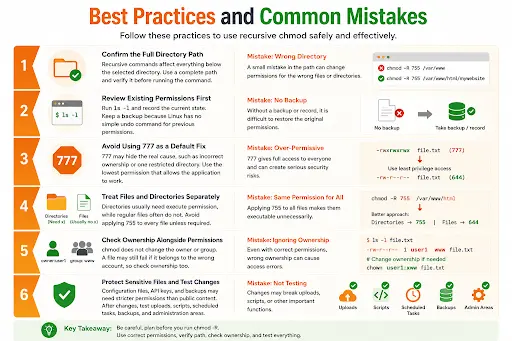
Confirm the Directory Path
Recursive commands affect everything inside the selected directory.Always verify the path before running the command.
Review Existing Permissions
Check the current permissions with ls -l and keep a backup if possible.Linux doesn't provide an automatic way to restore previous permissions.
Avoid Using 777 as a Quick Fix
Permission 777 may appear to solve access problems, but it often hides the real issue.Incorrect ownership or server configuration may be the actual cause.
Treat Files and Directories Differently
Directories usually require execute permission.Most regular files do not.
Applying 755 to every file is rarely necessary.
Verify Ownership
Changing permissions doesn't modify file ownership.If files belong to the wrong user or group, permission errors may continue even after using chmod.
Test Everything After Changes
Configuration files, backups, API keys, and sensitive data often require stricter permissions.After updating permissions, test your website thoroughly to ensure every feature continues working correctly.
Frequently Asked Questions
Q. What does chmod mean?
A. chmod stands for change mode. It is used to modify read, write, and execute permissions for Linux files and directories.
Q. What does the -R option do?
A. The -R option applies permission changes recursively to the selected directory, including all files and subdirectories.
Q. What is the difference between 755 and 644?
A. Permission 755 includes execute permission and is commonly used for directories. Permission 644 removes execute permission and is typically used for regular website files.
Q. Is chmod 777 safe?
A. Generally, no. It grants complete access to everyone and should only be used temporarily when absolutely necessary.
Q. Can recursive chmod be reversed?
A. There is no automatic undo feature.Restoring previous permissions requires a backup or documentation of the original settings.
Conclusion
Learning Chmod change permissions recursively makes Linux administration much easier, especially when working with websites, development projects, or large collections of files. By understanding permission values like 755 and 644, checking existing settings before making changes, and using recursive commands carefully, you can keep your Linux system secure and organized.
To continue learning about Linux server management and hosting environments, explore unmanaged Linux VPS


Comments