


Fixing the HTTP 405 Method Not Allowed Error on WordPress Sites

Updated: Jul 24
A WordPress 405 method not allowed error can be frustrating because it often appears without much explanation. One moment your website is working normally, and the next, a form won't submit or an important page refuses to load. Instead of showing the expected result, the server responds with a message saying the request method isn't allowed.
The good news is that this error is usually fixable. In many cases, it happens because of a plugin conflict, incorrect server configuration, or a problem with your WordPress settings. Once you understand why it occurs, you can work through the possible causes one by one and get your website back to normal.

What Does the HTTP 405 Method Not Allowed Error Mean?
Every time your browser communicates with a website, it sends an HTTP request. These requests use methods such as:
GET – Retrieves information from the server.
POST – Sends data, such as contact form submissions or login details.
PUT – Updates existing resources.
DELETE – Removes resources.
A 405 Method Not Allowed error means the web server understood the request but refuses to allow the HTTP method used for that specific page or resource.
Think of it like visiting a library. You are allowed to read books inside, but you cannot remove them from the building. The librarian understands your request but declines it because that action isn't permitted.
Why Does the WordPress 405 Method Not Allowed Error Happen?
Several issues can trigger this error. The most common include:
Plugin conflicts
Theme compatibility problems
Incorrect .htaccess rules
Server security settings
Web application firewall restrictions
Incorrect hosting configuration
Corrupted WordPress files
Recent website updates
Fortunately, most of these problems can be diagnosed without advanced technical knowledge.
Signs You May Be Experiencing This Error
Depending on your website, you may notice:
Contact forms stop working
Login pages fail after submitting credentials
API requests return an error
Admin actions cannot be completed
Certain pages display "405 Method Not Allowed
Sometimes the issue affects only one feature instead of the entire website, making it harder to identify immediately.

Step 1: Check Whether a Plugin Is Causing the Problem
Plugins extend WordPress functionality, but they can occasionally conflict with one another or with server settings.
If the error appeared after installing or updating a plugin:
Log in to the WordPress dashboard.
Deactivate recently installed plugins.
Test the affected page.
Reactivate plugins one by one until the error returns.
This process helps identify which plugin is responsible.
Real-World Example
Imagine you install a new contact form plugin. Visitors suddenly receive a 405 error whenever they submit the form. After disabling the plugin, the form works again using another solution. The plugin was sending requests the server rejected.
Step 2: Switch to a Default WordPress Theme
Themes sometimes include custom functions that interfere with requests.
Temporarily switch to a default WordPress theme such as Twenty Twenty-Five or another official theme.
If the error disappears, your original theme likely contains code that needs updating or correction.
Always create a backup before making changes.
Step 3: Review the .htaccess File
The .htaccess file controls many Apache server behaviors.
Incorrect rewrite rules or manual edits may accidentally block valid HTTP methods.
A safe approach is to:
Download a backup of the current file.
Rename the existing .htaccess.
Visit Settings → Permalinks in WordPress.
Click Save Changes without modifying anything.
WordPress automatically generates a fresh .htaccess file.
Step 4: Look at Server Error Logs
Error logs often reveal exactly what happened before the error occurred.
Depending on your hosting control panel, you may find logs showing:
Blocked POST requests
Permission problems
Security rule violations
Server configuration errors
These messages provide valuable clues instead of relying on guesswork.
Step 5: Check Security Plugins and Firewalls
Security tools protect websites by blocking suspicious activity.
Occasionally, legitimate requests may resemble malicious traffic and become blocked.
Review recent security changes if you use:
Web application firewalls
Login protection plugins
Custom firewall rules
IP restrictions
Temporarily disabling security features for testing can help determine whether they are responsible.
Step 6: Verify Hosting Configuration
Some hosting environments include additional security rules that restrict specific HTTP methods.
If you've ruled out plugins, themes, and configuration files, it's worth checking whether your hosting environment allows the requests your website needs.
Reliable WordPress hosting plans typically provide optimized server configurations designed to support common WordPress features while maintaining security and stability.
Step 7: Restore Recent Changes
Did the problem begin after:
Updating WordPress?
Editing configuration files?
Installing new software?
Changing server settings?
If so, reversing those recent changes can often restore normal operation.
A recent backup can save significant troubleshooting time.
Step 8: Check File Permissions
Incorrect file permissions may prevent the server from processing requests correctly.
Typical recommendations include:
Files: 644
Folders: 755
Changing permissions should be done carefully to avoid creating security risks.
Troubleshooting Checklist
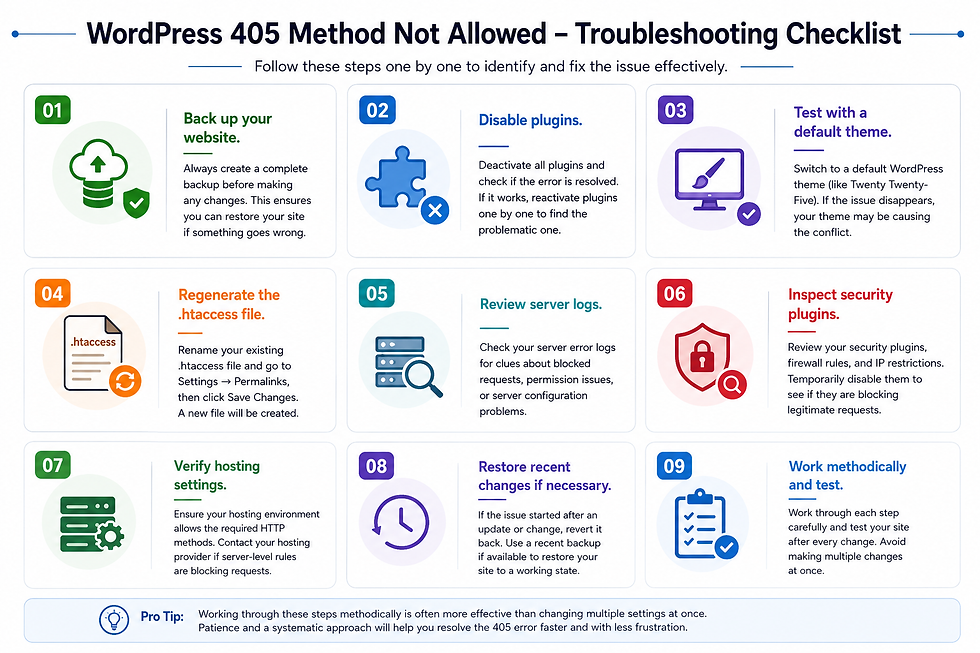
When facing a WordPress 405 method not allowed issue, work through this checklist:
Back up your website.
Disable plugins.
Test with a default theme.
Regenerate the .htaccess file.
Review server logs.
Inspect security plugins.
Verify hosting settings.
Restore recent changes if necessary.
Working through these steps methodically is often more effective than changing multiple settings at once.
Comparison: Common Causes vs. Typical Fixes
Cause | Typical Symptom | Possible Fix |
Plugin conflict | Forms or admin actions fail | Disable and test plugins |
Theme issue | Error appears after theme update | Switch to a default theme |
Broken .htaccess | Multiple pages affected | Regenerate the file |
Security firewall | POST requests blocked | Review firewall settings |
Hosting configuration | Persistent 405 errors | Contact hosting support |
File permissions | Certain scripts fail | Correct permissions |
Real-World Example: Online Store Checkout Failure
A small online store updated a payment plugin before a weekend sale.
Customers could browse products normally, but clicking Place Order produced a 405 error because the checkout page relied on POST requests. After disabling the updated plugin and installing a compatible version, orders processed successfully again.
The lesson is simple: test updates before applying them to a live website whenever possible.
When Should You Contact Your Hosting Provider?
Sometimes the problem isn't inside WordPress.
Reach out to your hosting provider if:
Server logs indicate configuration issues.
Security rules are blocking requests.
The problem affects multiple websites.
You cannot access important server settings.
Providing details about what you've already tested helps support teams investigate more efficiently.
If you'd like a more detailed walk through covering individual troubleshooting steps, this guide on the 405 method not allowed WordPress error explains additional checks that may help identify the root cause.
Common Mistakes to Avoid

Many website owners accidentally make troubleshooting harder by:
Disabling every plugin without taking notes.
Editing .htaccess without creating a backup.
Ignoring server error logs.
Changing multiple settings simultaneously.
Skipping website backups.
Assuming the error always comes from WordPress.
Forgetting to clear browser and server caches after making changes.
A systematic approach makes identifying the real cause much easier.
Frequently Asked Questions
Q. Is a 405 Method Not Allowed error the same as a 404 error?
A. No. A 404 means the requested page cannot be found. A 405 means the page exists, but the server refuses the HTTP method used to access it.
Q. Can plugins cause a WordPress 405 method not allowed error?
A. Yes. Plugins that manage forms, security, APIs, or redirects can sometimes send requests that conflict with server rules or other plugins.
Q. Will reinstalling WordPress fix the issue?
A. Not always. Since the error often comes from plugins, themes, or server configuration, reinstalling WordPress may not solve the underlying problem.
Q. Should I edit the .htaccess file manually?
A. Only if you're comfortable doing so and have created a backup first. Small mistakes in this file can affect your entire website.
Q. Can hosting settings trigger a 405 error?
A. Yes. Server security policies, firewall rules, or web server configuration can prevent certain HTTP methods from being accepted.
Q. How do I prevent this error in the future?
A. Keep WordPress, plugins, and themes updated, create regular backups, test changes before deploying them, and monitor server logs for unusual activity.
Conclusion
A WordPress 405 method not allowed error may seem confusing at first, but it usually points to a manageable configuration issue rather than a major website failure. By checking plugins, themes, server logs, the .htaccess file, and hosting settings one step at a time, you can often identify the cause without unnecessary guesswork.
If you want to learn more about maintaining a stable and reliable WordPress environment, exploring different WordPress hosting plans can also help you understand the server features that support smooth website performance and easier troubleshooting.


Comments